

Notifications
Notifications in UnoPim provide a real-time, in-app alerting system that keeps administrators informed about important events and background processes. Introduced in v0.2.0, the notification system works alongside optional email notifications to ensure you never miss critical updates.
Whether it's the completion of a bulk import, a failed export job, or a product change, notifications help you stay on top of everything happening in your PIM without needing to constantly check each section manually.
Accessing Notifications
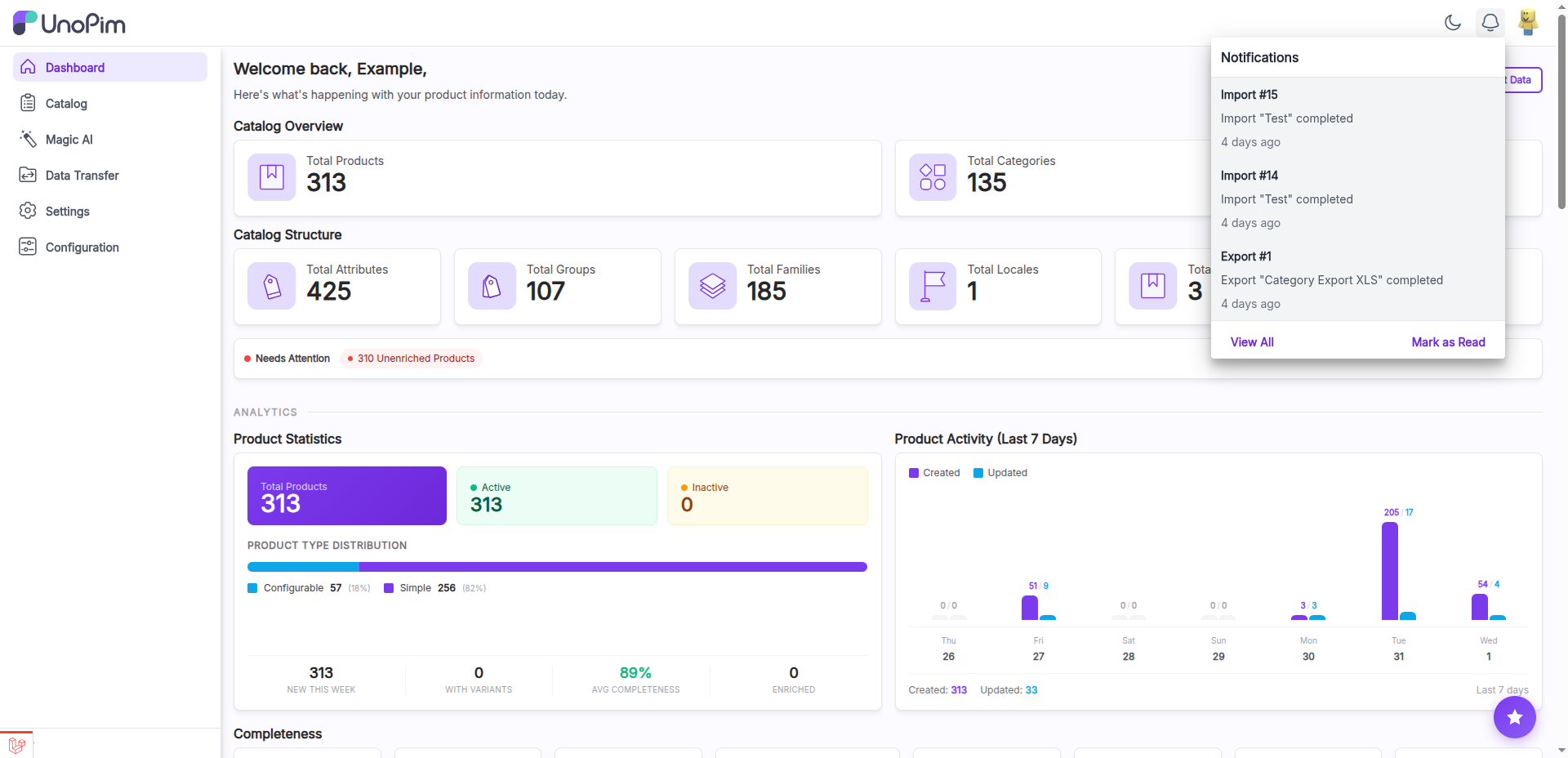
To access your notifications, click the Bell Icon in the top navigation bar of the Admin panel. This opens the notification panel where you can view all recent alerts.
Types of Notifications
UnoPim sends notifications for various system events. Below are the main categories:
1) Import/Export Job Status Updates
Whenever you run a bulk import or export job, UnoPim automatically sends a notification when the job is completed, failed, or requires attention. This allows you to monitor long-running data transfer operations without staying on the job tracker page.
- Completed — The import or export job finished successfully.
- Failed — The job encountered errors and could not complete.
- Completed with Errors — The job finished but some records were skipped due to validation issues.
2) Product Changes
Notifications can alert you when significant product data modifications occur, such as bulk updates or changes made through the API. This is useful when multiple team members are working on the product catalog simultaneously.
3) System Notifications
General system-level alerts, such as scheduled maintenance reminders or important configuration changes, are also delivered through the notification panel.
Notification Panel Features
The notification panel provides several options to help you manage your alerts efficiently:
1) View All Notifications
Click the Bell Icon to see a list of all your recent notifications. Each notification displays a brief summary, the timestamp, and the current read/unread status.
2) Mark as Read/Unread
You can mark individual notifications as read or unread. Unread notifications are highlighted so you can quickly identify new alerts. Click on a notification to mark it as read automatically.
3) Clear Notifications
To keep your notification panel clean, you can clear notifications that are no longer needed. This removes them from the panel so you can focus on the most recent and relevant alerts.
TIP
Regularly clearing old notifications helps you stay organized and quickly spot new important alerts.
Email Notifications
In addition to in-app notifications, UnoPim supports email notifications for critical events. When enabled, the system sends an email to the administrator's registered email address alongside the in-app notification.
How Email Notifications Work
Email notifications are sent automatically for key events such as import/export job completions and failures. This ensures that even if you are not actively logged into the Admin panel, you still receive timely updates.
Configuration
To configure email notifications, ensure your mail settings are properly set up under Configuration >> Email. UnoPim uses the configured mail driver (SMTP, Mailgun, etc.) to deliver notification emails.
TIP
Make sure your mail configuration is tested and working before relying on email notifications. You can verify this by sending a test email from the configuration panel.
By using both in-app and email notifications together, you can ensure complete visibility into all important events happening within your UnoPim instance.