

Export
Exporting data to save information in files is a common practice for data management, analysis, and sharing. This involves transferring data from a source system into a file format that is suitable for storage, future use, or sharing with others.
Steps to add Bulk Export in UnoPim
Step 1: Go to the Admin panel of UnoPim click on Data Transfer >> Exports and click on Create Exports button.
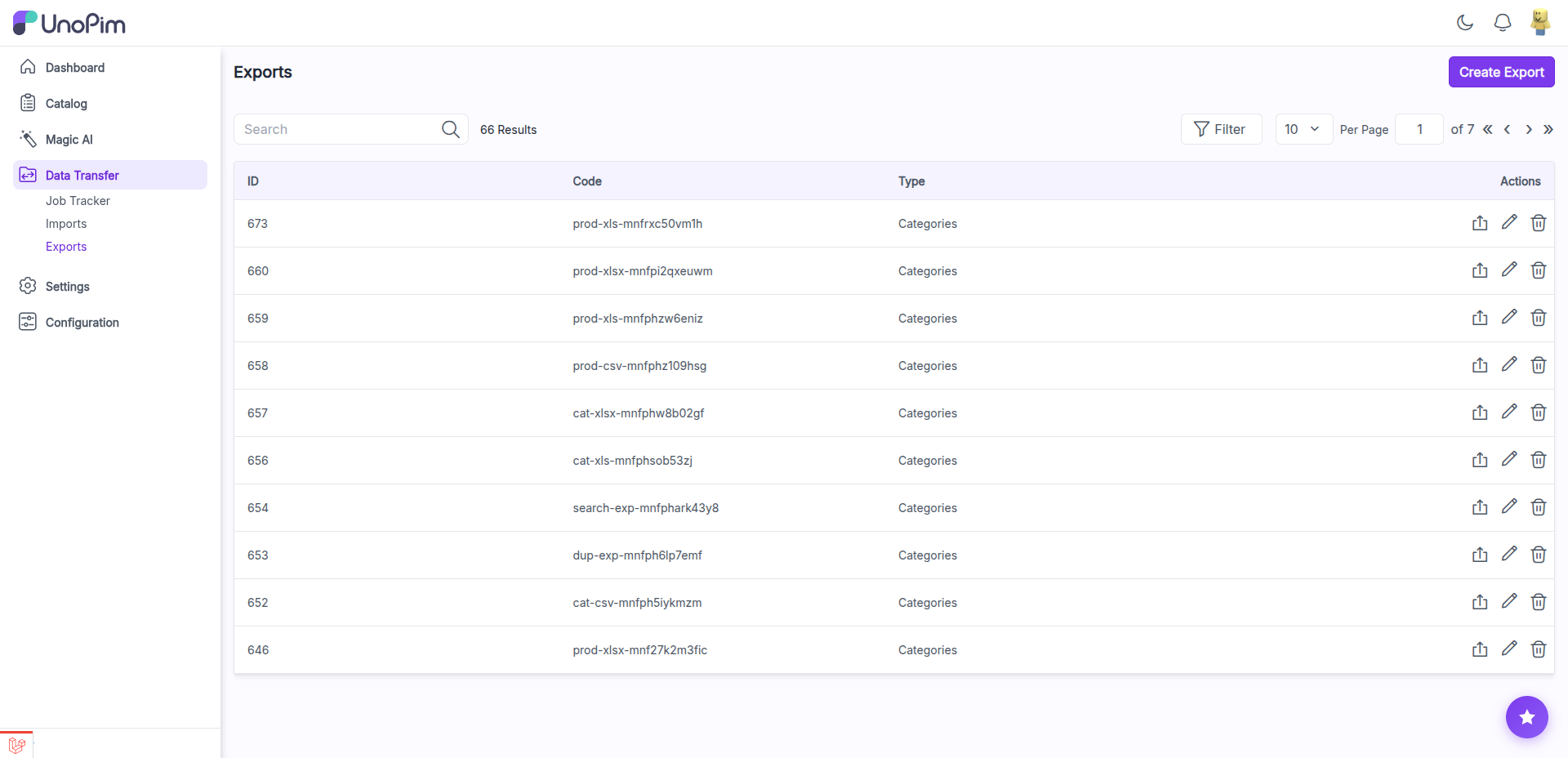
Step 2: Under general configurations add the below fields.
Code - Enter the code of your Export process.
Type - Kindly select the type i.e. (Products, Categories) which you want to Export.
Filters - Select the format of the file (CSV, XLS, XLSX) as per your requirements from the dropdown.
With Media - Enable or Disable if you need the export data with or without Media.
Now, click on Save Export button
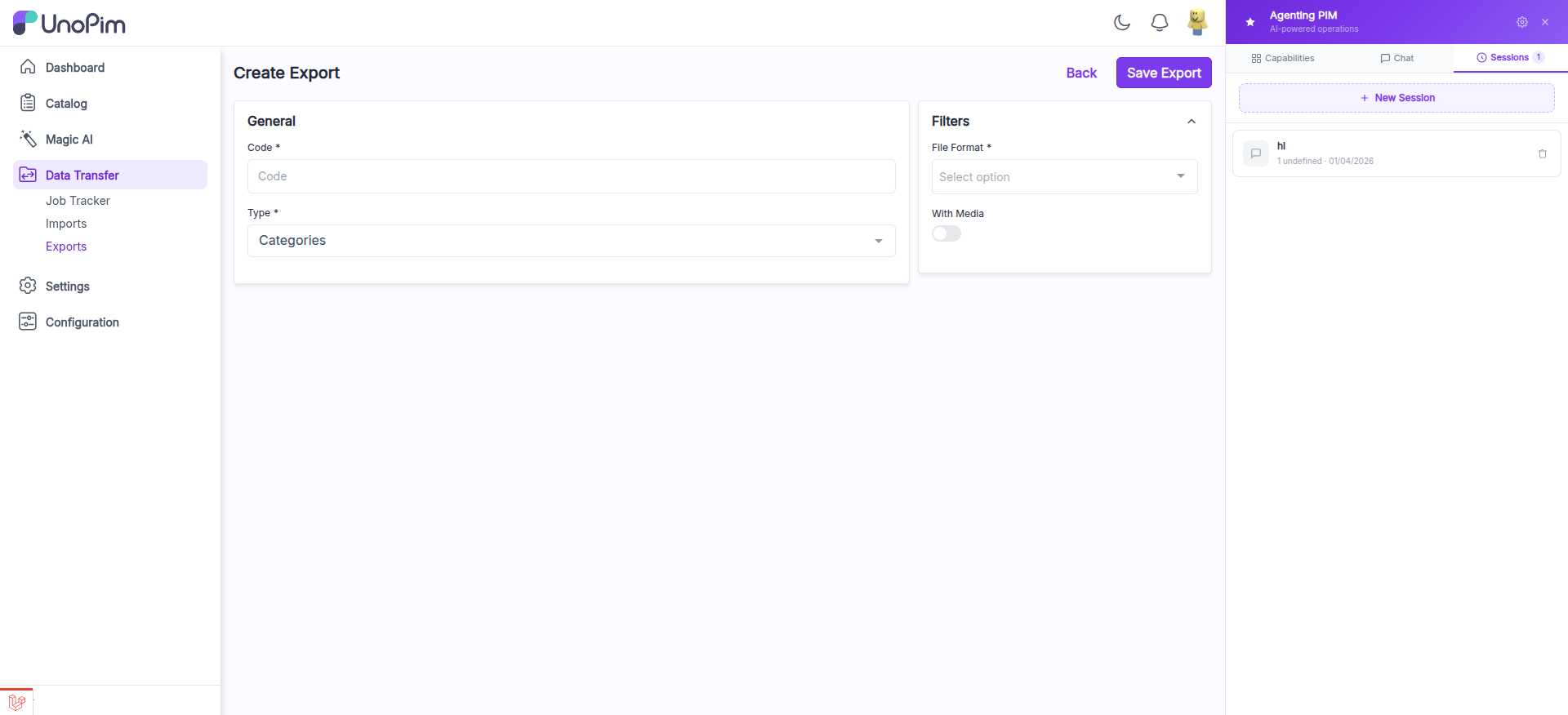
The create export form has a two-panel layout:
- General panel (left) — Code, Type (Products/Categories)
- Filters panel (right) — File Format (CSV/XLS/XLSX dropdown), With Media (toggle)
Step 3: From the export listing, click the Export action icon (play icon) on the row of the export you want to run. This opens the export execution page.
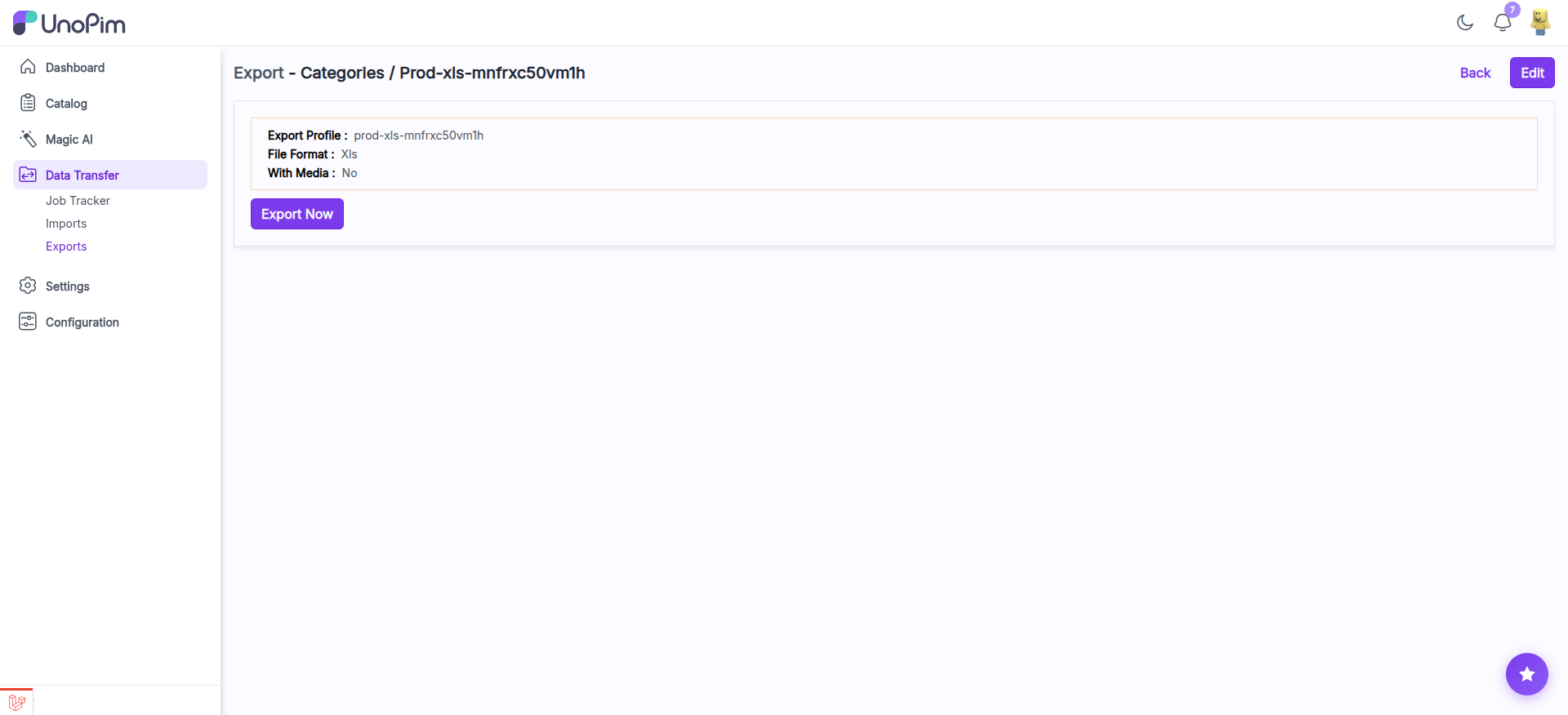
The execution page shows a summary of the export configuration:
- Export Profile — The export code
- File Format — CSV, XLS, or XLSX
- With Media — Yes or No
Click the Export Now button to start processing.
Export Tracker
Step 4: After clicking Export Now, you are redirected to the Job Tracker page which shows real-time progress of your export.
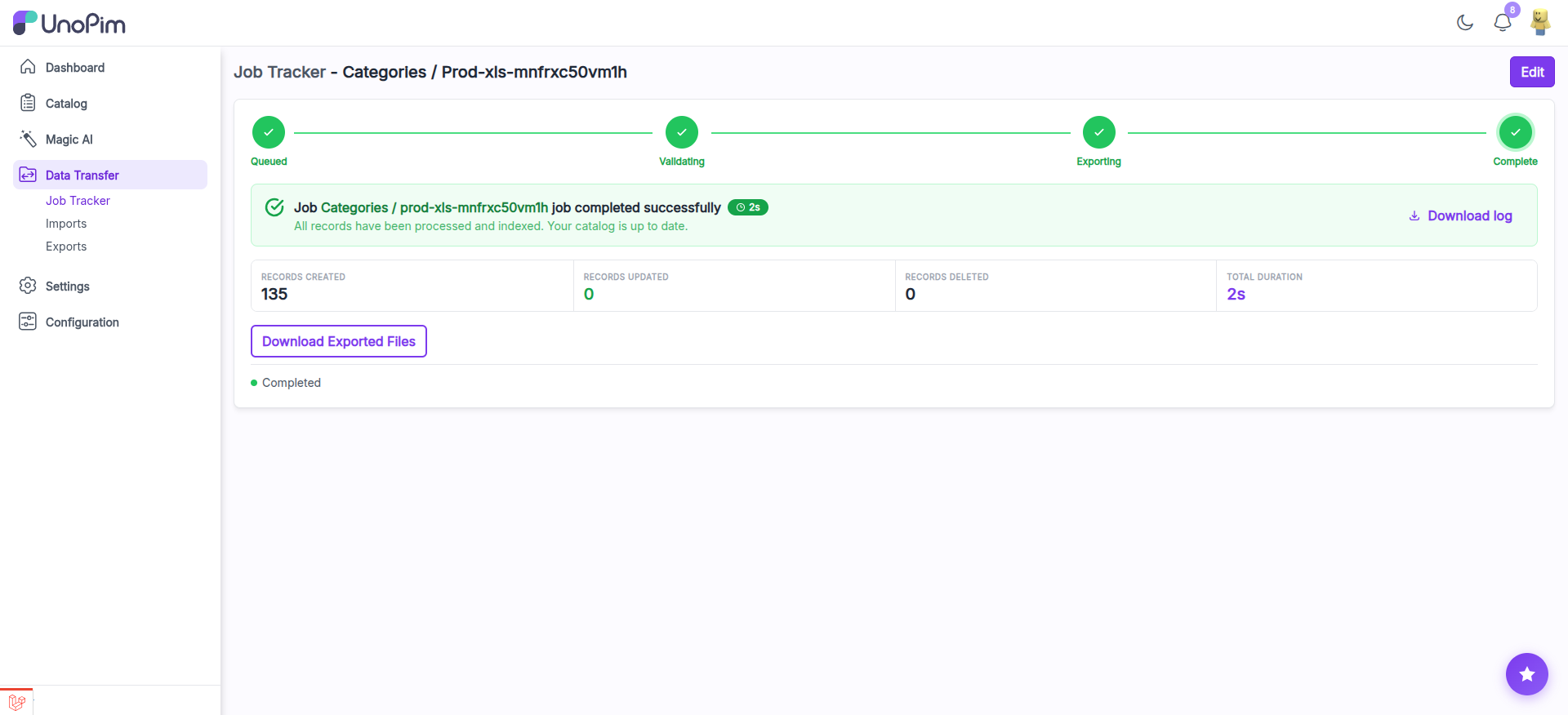
The tracker shows a step pipeline with visual progress indicators:
| Step | Description |
|---|---|
| Queued | Job is in the queue waiting to be processed |
| Validating | Export configuration is being validated |
| Exporting | Records are being written to the export file |
| Complete | Export finished successfully |
Each step shows a green checkmark when completed. Below the pipeline you can see:
- Success message — "Job completed successfully" with the total duration
- Records Created / Updated / Deleted — Exact counts of records exported
- Total Duration — How long the export took
- Download log — Download the full export log file
- Download Exported Files button — Click to download the generated file
Pause, Resume, and Cancel Controls
During an active export, job control buttons appear in the tracker:
- Pause — Temporarily halt an in-progress export. The job state is preserved.
- Resume — Continue a paused export from where it left off.
- Cancel — Stop an export entirely. Cancelled jobs cannot be resumed.
TIP
The pause and resume feature is especially useful for large exports. You can pause a job during peak hours and resume it during off-peak times.
Quick Product Export
UnoPim supports dynamic management of quick product export jobs. You can quickly export selected products directly from the product listing:
- Navigate to Catalog >> Products
- Select the products you want to export (or export all)
- Click on Quick Export button in the top-right
- Choose the format (CSV, XLS, XLSX)
- The export will be processed and downloaded
TIP
For large exports, the system uses an optimized export pipeline with eager loading and increased batch size (up to 200) for better performance. Category exports have been optimized to avoid memory overload.
So by the above steps you can easily create Export Data in UnoPim.