

Magic AI Configuration
The Magic AI section in the admin sidebar provides four sub-pages for managing AI providers, behavior, prompts, and system-level personality settings. Navigate to Magic AI in the sidebar to access them.
Platforms
Navigate to Magic AI >> Platforms to manage your AI provider connections.
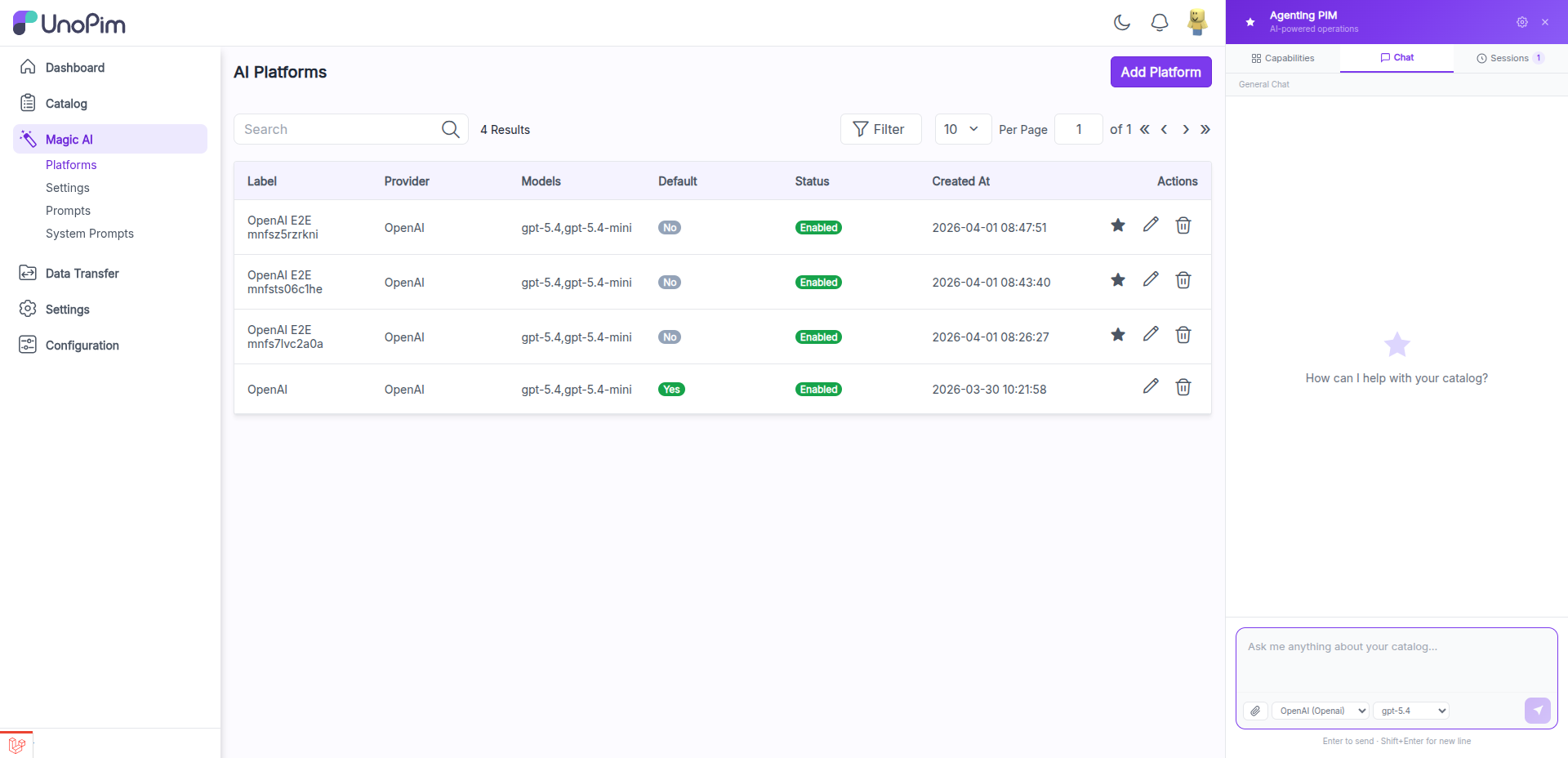
The Platforms page displays a datagrid with the following columns:
| Column | Description |
|---|---|
| Label | The name you assigned to the platform configuration |
| Provider | The AI provider (OpenAI, Gemini, Ollama, Groq, etc.) |
| Models | The models enabled for this platform |
| Default | Whether this platform is the default (Yes/No) |
| Status | Enabled or Disabled |
| Created At | Date the platform was added |
| Actions | Star (set as default), Edit (pencil icon), Delete (trash icon) |
Adding a Platform
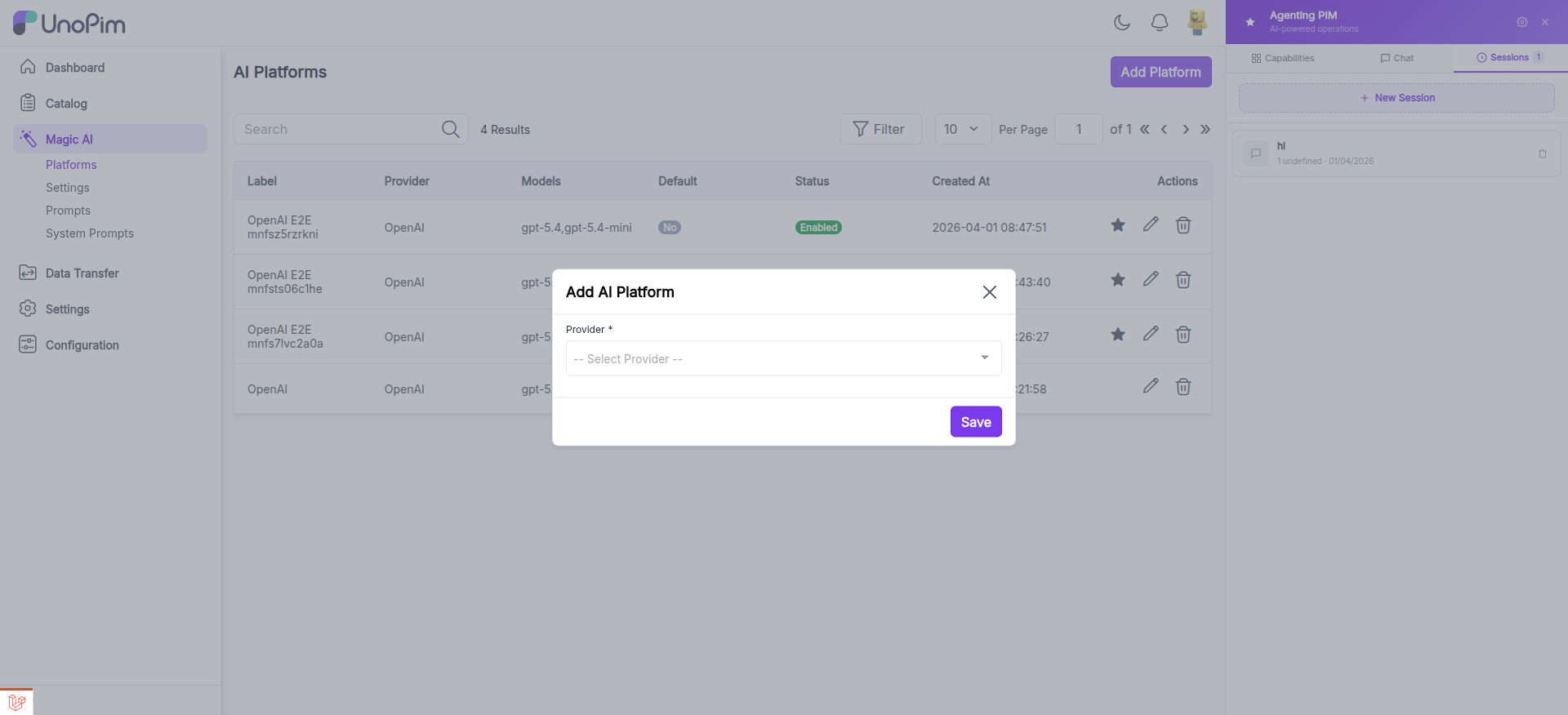
Click the Add Platform button in the top-right corner. A modal opens with the following fields:
- Provider — Select a provider from the dropdown (e.g., OpenAI, Gemini, Ollama, Groq).
- Label — Enter a descriptive name for this platform configuration.
- API Key — Paste the API key from your provider account.
- Models — A multiselect field listing available models for the selected provider. Choose one or more models.
- Status — Toggle to enable or disable the platform.
TIP
API credentials are stored with encrypted credential storage for security. Your API keys are never stored in plain text.
Platform Actions
- Star icon — Sets the platform as the default. Only one platform can be the default at a time.
- Pencil icon — Opens the edit modal to update the platform label, API key, models, or status.
- Trash icon — Deletes the platform configuration. This action cannot be undone.
Settings
Navigate to Magic AI >> Settings in the sidebar. This opens the configuration page at /admin/configuration/general/magic_ai with four sections.
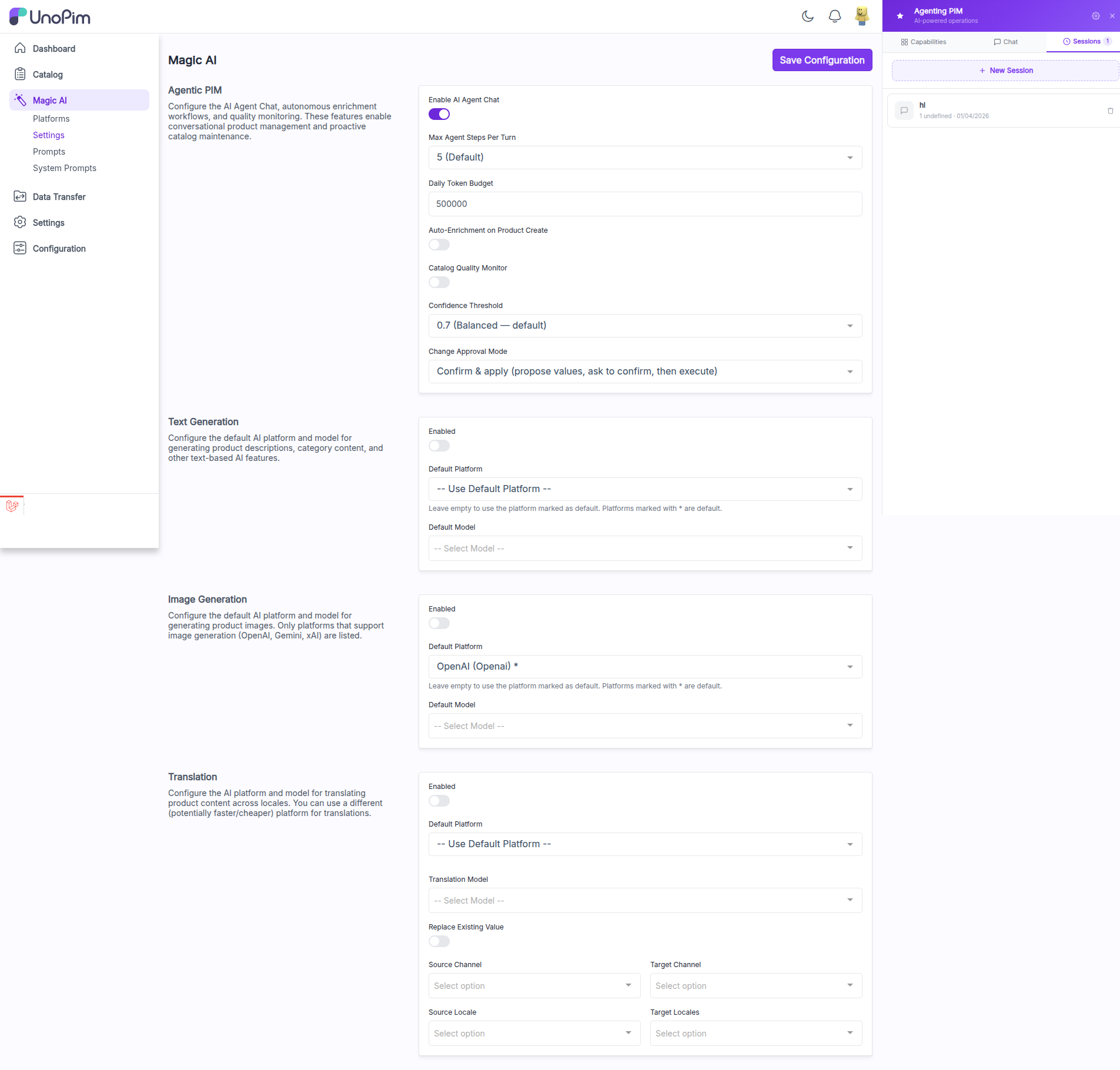
1. Agentic PIM
Configure the AI Agent Chat, autonomous enrichment workflows, and quality monitoring.
| Field | Description |
|---|---|
| Enable AI Agent Chat | Toggle to enable or disable the conversational AI agent interface |
| Max Agent Steps Per Turn | Dropdown to set the maximum number of tool calls the agent can make per turn (default: 5) |
| Daily Token Budget | Number field to set the maximum tokens the AI can consume per day (e.g., 500000) |
| Auto-Enrichment on Product Create | Toggle to automatically enrich product data when a new product is created |
| Catalog Quality Monitor | Toggle to enable ongoing AI-driven catalog quality monitoring |
| Confidence Threshold | Dropdown to set how confident the AI must be before applying changes (default: 0.7 Balanced) |
| Change Approval Mode | Dropdown to control how AI-proposed changes are applied (default: "Confirm & apply" — the AI proposes values, asks for confirmation, then executes) |
2. Text Generation
Configure the default AI platform and model for generating product descriptions, category content, and other text-based AI features.
| Field | Description |
|---|---|
| Enabled | Toggle to enable or disable text generation |
| Default Platform | Dropdown to select the platform. Choose "Use Default Platform" to use the starred platform, or select a specific one |
| Default Model | Dropdown to select the model from the chosen platform |
3. Image Generation
Configure the default AI platform and model for generating product images. Only platforms that support image generation (OpenAI, Gemini, xAI) are listed.
| Field | Description |
|---|---|
| Enabled | Toggle to enable or disable image generation |
| Default Platform | Dropdown to select an image-capable platform |
| Default Model | Dropdown to select the image generation model |
4. Translation
Configure the AI platform and model for translating product content across locales. You can use a different platform for translations, allowing you to choose a faster or more cost-effective provider.
| Field | Description |
|---|---|
| Enabled | Toggle to enable or disable AI-powered translation |
| Default Platform | Dropdown to select the platform used for translation |
| Translation Model | Dropdown to select the model used for translation |
| Replace Existing Value | Toggle to control whether existing translations are overwritten when re-translating |
| Source Channel | Dropdown to select the channel whose content is used as the translation source |
| Target Channel | Dropdown to select the channel that receives translated content |
| Source Locale | Dropdown to select the locale to translate from |
| Target Locales | Multi-select dropdown to choose which locales to translate into |
TIP
You can assign a different (potentially cheaper or faster) AI provider specifically for translations, keeping your premium provider for content generation.
Click Save Configuration at the bottom of the page to apply all changes.
Prompts
Navigate to Magic AI >> Prompts to manage custom prompts for AI content generation.
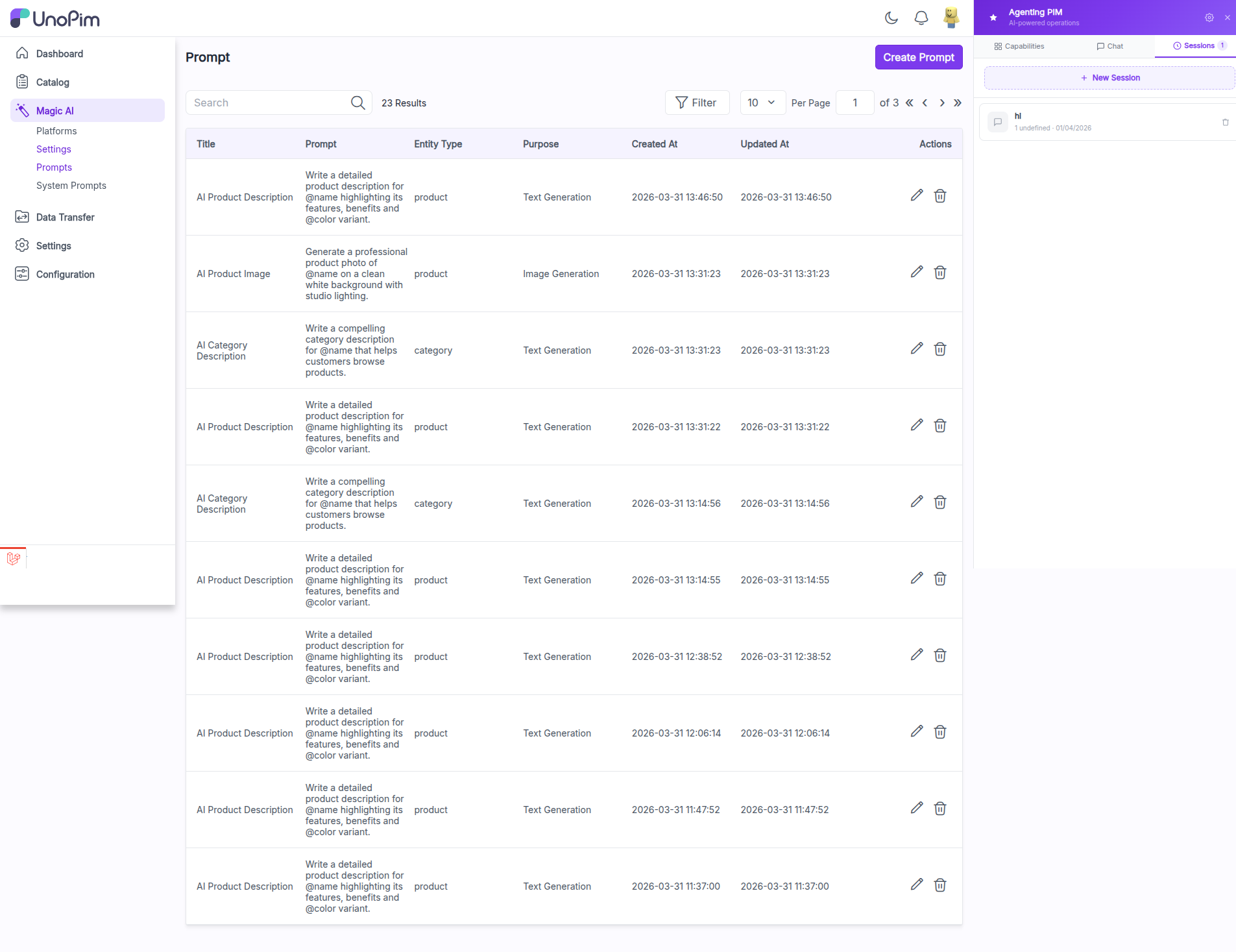
The Prompts page displays a datagrid with the following columns:
| Column | Description |
|---|---|
| Title | The name of the prompt |
| Prompt | The prompt text with placeholders |
| Entity Type | The entity the prompt applies to (product or category) |
| Purpose | Whether the prompt is for Text Generation or Image Generation |
| Created At | Date the prompt was created |
| Updated At | Date the prompt was last modified |
| Actions | Edit (pencil icon), Delete (trash icon) |
Creating a Prompt
Click the Create Prompt button to add a new prompt. Define the title, prompt text, entity type, and purpose.
Prompts support dynamic placeholders that are replaced with actual product or category data at generation time. Common placeholders include @name, @color, and other attribute codes.
Example Prompts
Here are examples of prompts that ship with UnoPim:
| Title | Prompt | Entity Type | Purpose |
|---|---|---|---|
| AI Product Description | Write a detailed product description for @name highlighting its features, benefits and @color variant. | product | Text Generation |
| AI Product Image | Generate a professional product photo of @name on a clean white background with studio lighting. | product | Image Generation |
| AI Category Description | Write a compelling category description for @name that helps customers browse products. | category | Text Generation |
TIP
Use attribute codes as placeholders (prefixed with @) in your prompts. The AI will replace them with actual values from the product or category being processed.
System Prompts
Navigate to Magic AI >> System Prompts to configure the AI's personality and behavior for content generation.
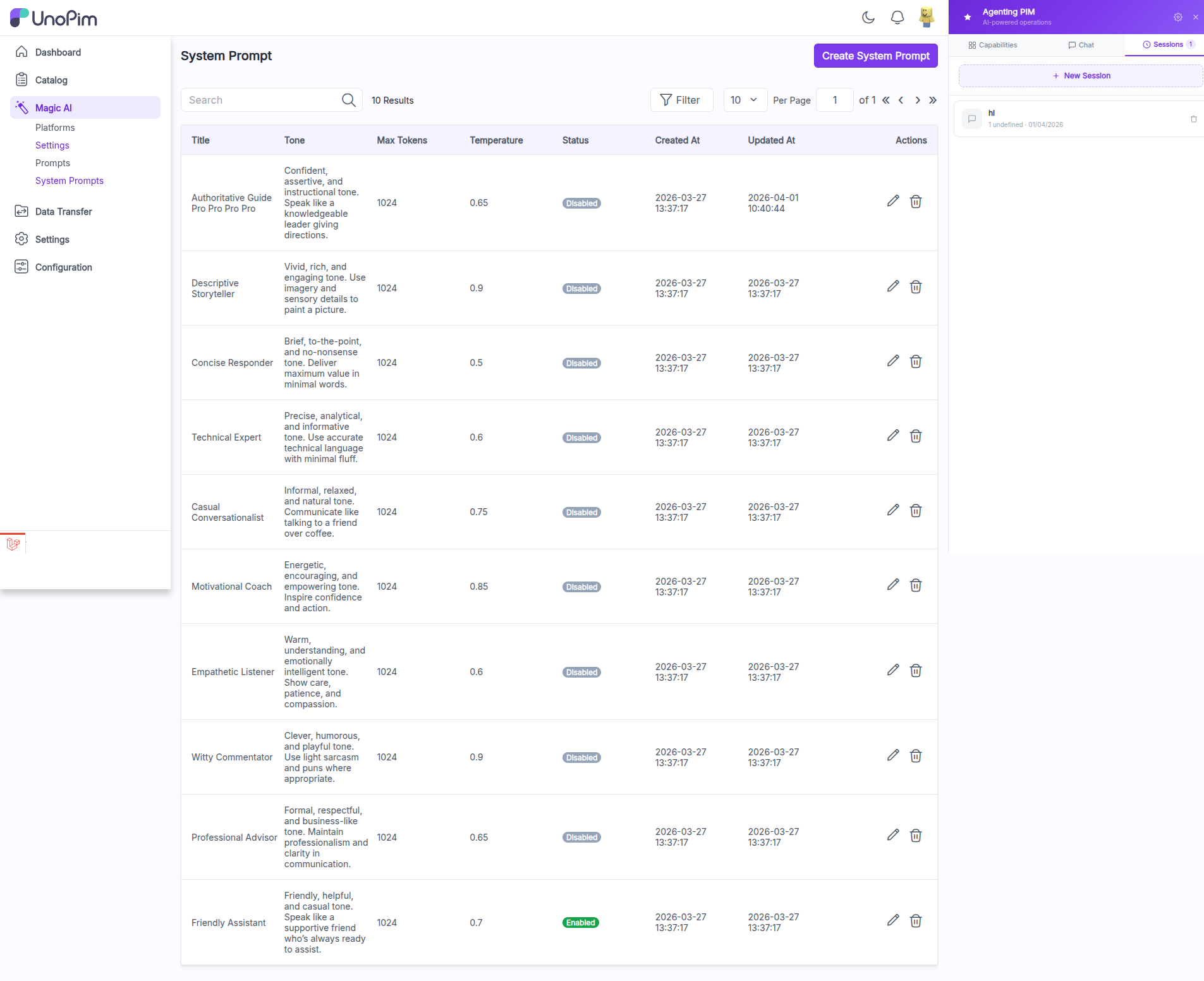
The System Prompts page displays a datagrid with the following columns:
| Column | Description |
|---|---|
| Title | The name of the system prompt |
| Tone | The conversational tone (e.g., Confident, Vivid, Brief) |
| Max Tokens | The maximum number of tokens for AI responses |
| Temperature | The creativity level (lower = more focused, higher = more creative) |
| Status | Enabled or Disabled |
| Created At | Date the system prompt was created |
| Updated At | Date the system prompt was last modified |
| Actions | Edit (pencil icon), Delete (trash icon) |
Preset System Prompts
UnoPim ships with 10 preset system prompts. Only one system prompt can be enabled at a time.
| Title | Tone | Temperature | Notes |
|---|---|---|---|
| Authoritative Guide | Confident, assertive, instructional | 0.65 | |
| Descriptive Storyteller | Vivid, rich, engaging | 0.9 | |
| Concise Responder | Brief, to-the-point | 0.5 | |
| Technical Expert | Precise, analytical | 0.6 | |
| Casual Conversationalist | Informal, relaxed | 0.75 | |
| Motivational Coach | Energetic, encouraging | 0.85 | |
| Empathetic Listener | Warm, understanding | 0.6 | |
| Witty Commentator | Clever, humorous | 0.9 | |
| Professional Advisor | Formal, respectful | 0.65 | |
| Friendly Assistant | Friendly, helpful, casual | 0.7 | Enabled by default |
Creating a System Prompt
Click the Create System Prompt button to define a new AI personality. Configure the title, tone description, max tokens, temperature, and status.
TIP
Only one system prompt can be active at a time. Enabling a new system prompt automatically disables the previously active one. Choose a system prompt that matches the tone you want across all AI-generated content.