

Import
Bulk import is a feature that allows users to import large quantities of data into a system quickly and efficiently. It simplifies the process and saves time by not having to add each piece of information one by one.
The feature works differently for each system and has a vast variety of use cases across many industries as well as UnoPim.
Steps to add Bulk Import in UnoPim
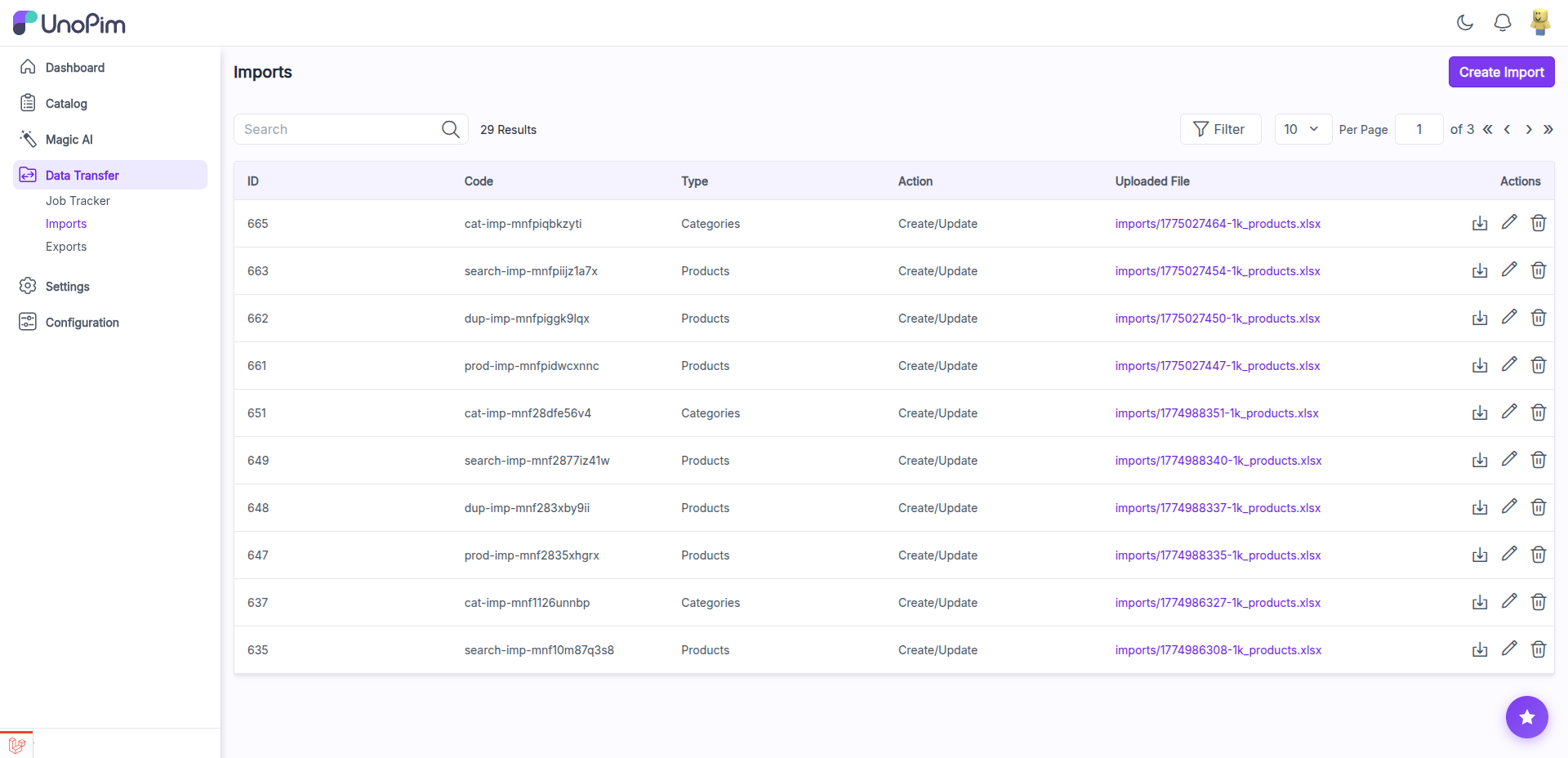
Step 1: Go to the Admin panel of UnoPim click on Data Transfer >> Imports >> Create Import.
Step 2: Under general configurations add the below fields:
Code - Enter the code of your Import process.
Type - Kindly select the type i.e. (Products, Categories) which you want to import.
File – Choose the file in your desired format (CSV, XLS, XLSX) and kindly make sure you have all the required fields in the file.
Download Sample – You can also download the sample files of types (Products, Categories). Kindly make sure the file you are uploading is similar to this sample file.
Image Directory Path – For product images files should be placed into /project-root/storage/app/import/product-images folder.
Action – Kindly select from the settings configuration that you want to Create/Update or Delete the records.
Validation Strategy – This unique feature allows you to Skip the Errors or to Stop on Errors while Importing the data.
Allowed Errors – This feature allows you how much quantity of errors will get neglected while importing the data.
Field Separator – This feature allows you to set the fields. For Example if you use "," as a field separator then the data inside the file gets separated with this.
Now, click on Save Import button.
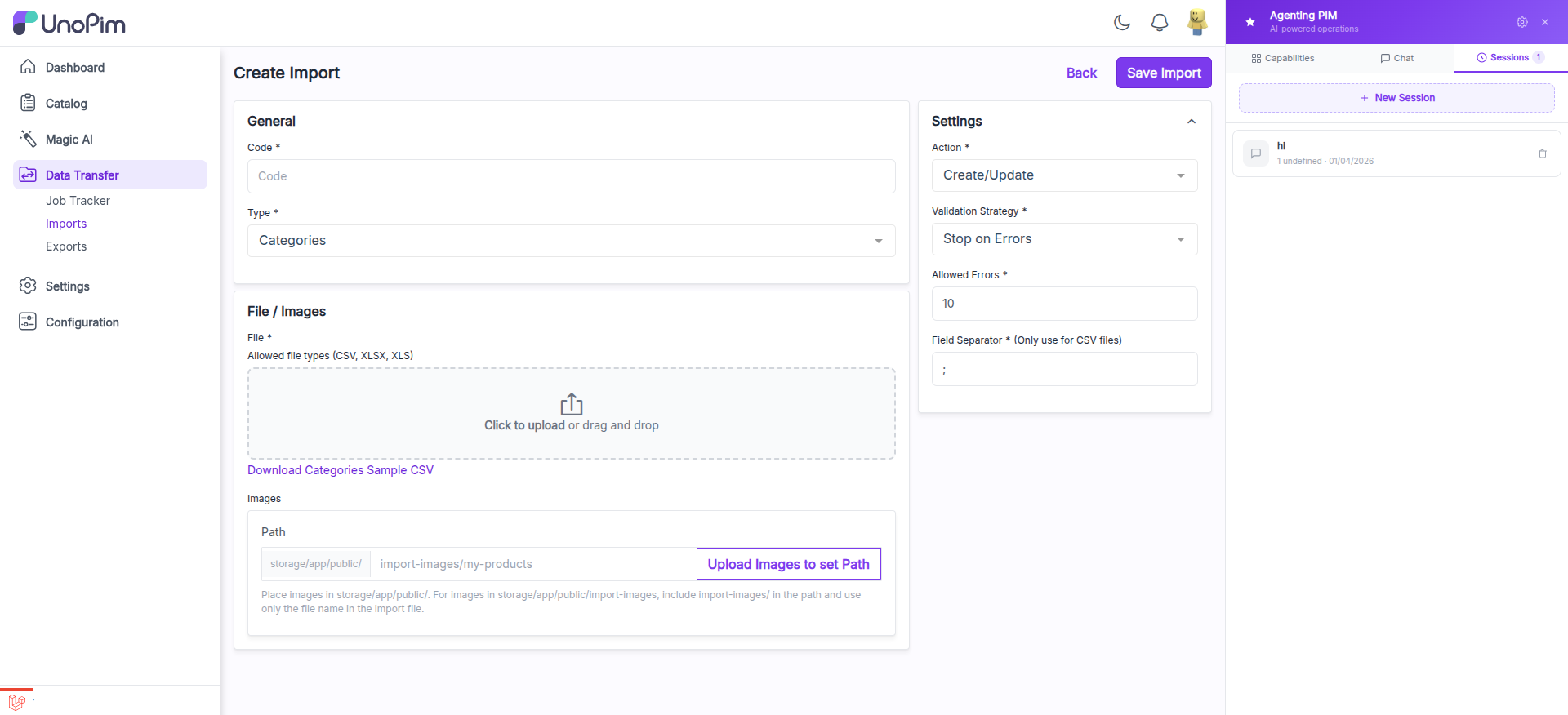
The create import form has a two-panel layout:
- General panel (left) — Code, Type (Products/Categories), File upload area, Download Sample CSV link, Image Path
- Settings panel (right) — Action (Create/Update), Validation Strategy (Stop on Errors/Skip Errors), Allowed Errors, Field Separator
Drag-and-Drop File Upload
UnoPim v2.0 supports Drag-and-Drop File Upload for import files. The upload area displays "Click to upload or drag and drop" with supported file types (CSV, XLSX, XLS). You can drag a file directly from your file manager onto the dashed upload area.
Dynamic Import Job Filters
Import jobs support dynamic filters that allow you to configure advanced filtering conditions for your import data. This helps you control exactly which records get imported based on specific criteria.
Step 3: From the import listing, click the Import action icon (play icon) on the row of the import you want to run. This opens the import execution page.
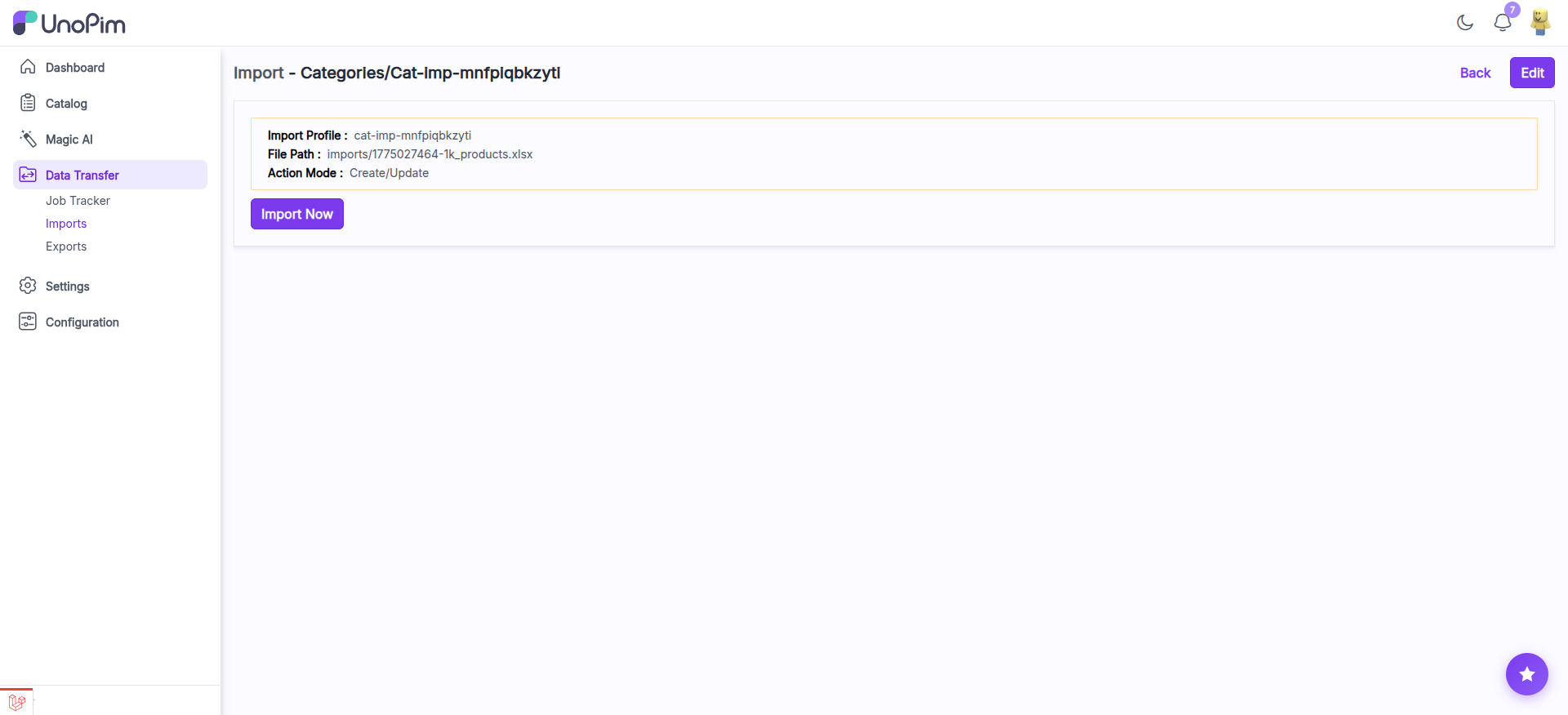
The execution page shows a summary of the import configuration:
- Import Profile — The import code
- File Path — The uploaded file location
- Action Mode — Create/Update or Delete
Click the Import Now button to start processing.
Import/Export Tracker
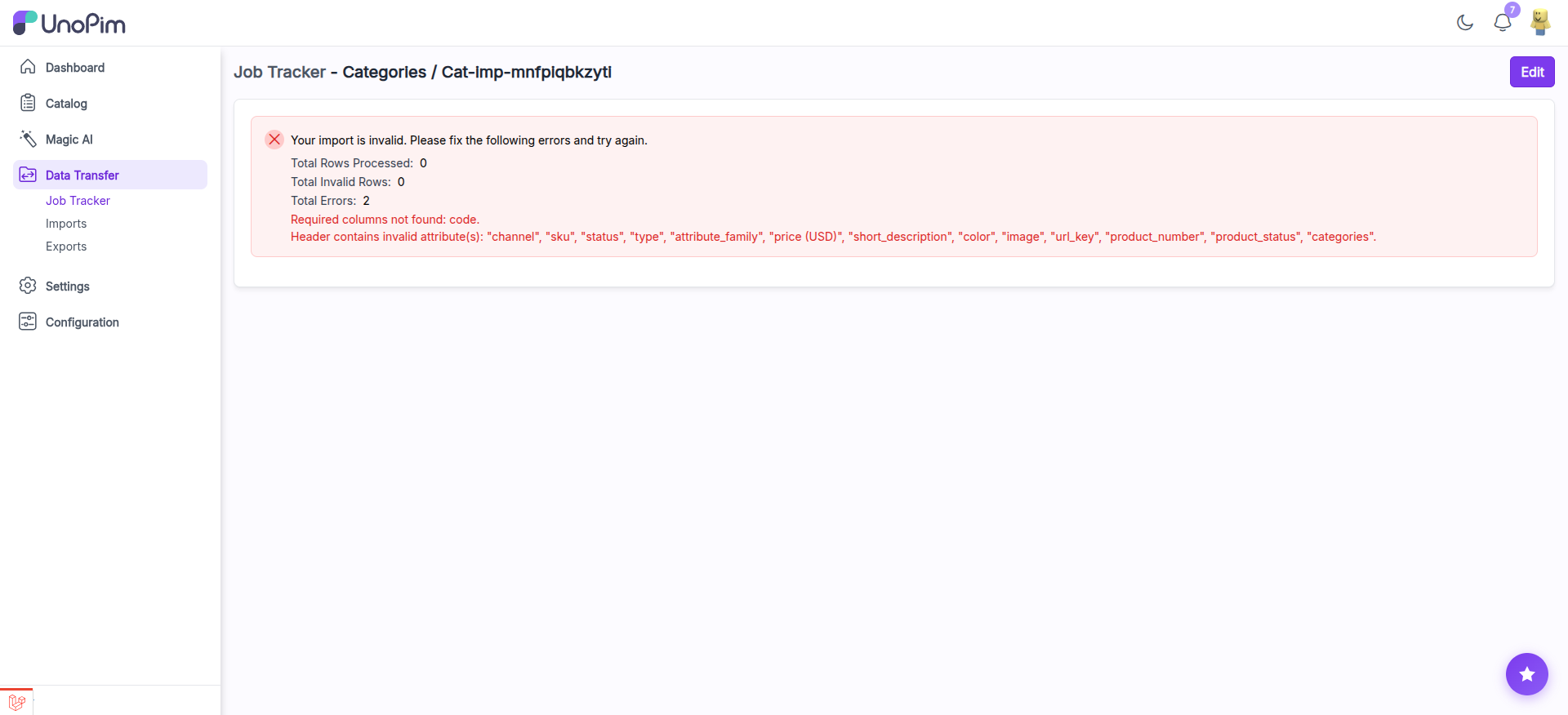
Step 4: After clicking Import Now, you are redirected to the Job Tracker page which shows real-time progress of your import.
The tracker shows a step pipeline with visual progress indicators:
| Step | Description |
|---|---|
| Queued | Job is in the queue waiting to be processed |
| Validating | File is being validated against import rules |
| Importing | Records are being created/updated in the database |
| Indexing | Elasticsearch indexes are being updated |
| Complete | Import finished successfully |
Each step shows a green checkmark when completed. Below the pipeline you can see:
- Success/Error message — Whether the job completed or failed, with details
- Records Created / Updated / Deleted — Exact counts of what changed
- Total Duration — How long the import took
- Download log — Download the full import log file
- Error details — If validation fails, you see the specific errors (e.g., "Required columns not found: code")
Pause, Resume, and Cancel Controls
During an active import, job control buttons appear in the tracker:
- Pause — Temporarily halt an in-progress import. The job state is preserved and can be resumed later.
- Resume — Continue a paused import from where it left off.
- Cancel — Stop an import entirely. Cancelled jobs cannot be resumed.
TIP
The pause and resume feature is especially useful for large imports. You can pause a job during peak hours and resume it during off-peak times.
TIP
The pause and resume feature is especially useful for large imports. You can pause a job during peak hours and resume it during off-peak times.
Also you can run the below command in the root of your UnoPim to process the import queue:
php artisan queue:listenSo by the above steps you can easily create Import Data in UnoPim.