

AI Agent Chat
The AI Agent Chat is your conversational interface for performing PIM operations. Through this chat window, you can interact with the AI Agent using natural language to manage products, categories, data quality, and more.
Opening the AI Agent Chat
To open the AI Agent Chat, click the "Open Agenting PIM" button located at the bottom-right corner of any page in the admin panel.
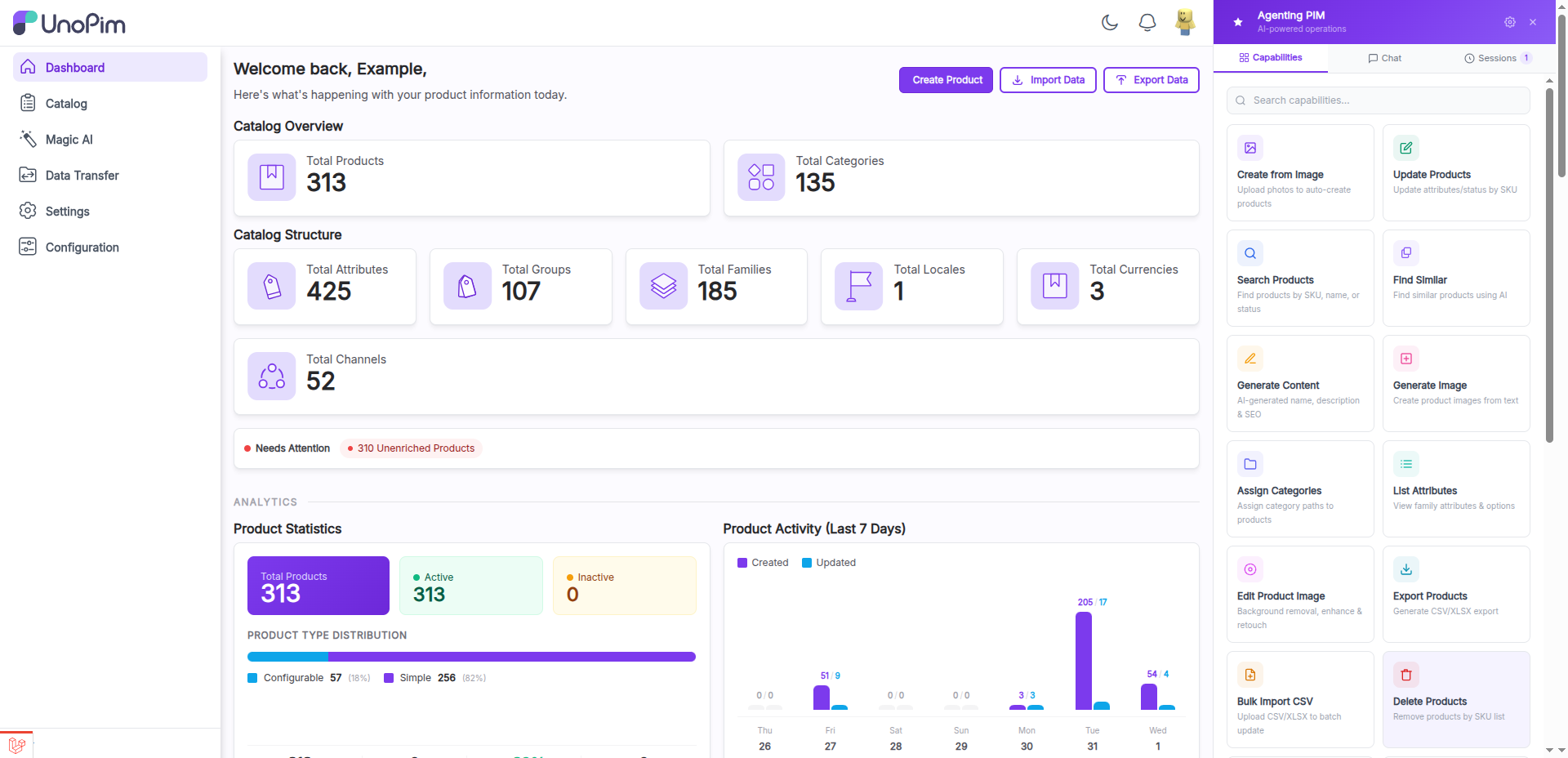
The AI Agent panel header includes an AI Settings link that navigates to /admin/ai-agent/settings, where you can configure AI providers, models, and tool-level permissions.
The AI Agent panel includes three tabs:
- Capabilities — Browse the 23 available PIM tools.
- Chat — Conversational interface to interact with the AI using natural language.
- Sessions — View and manage your past chat sessions.
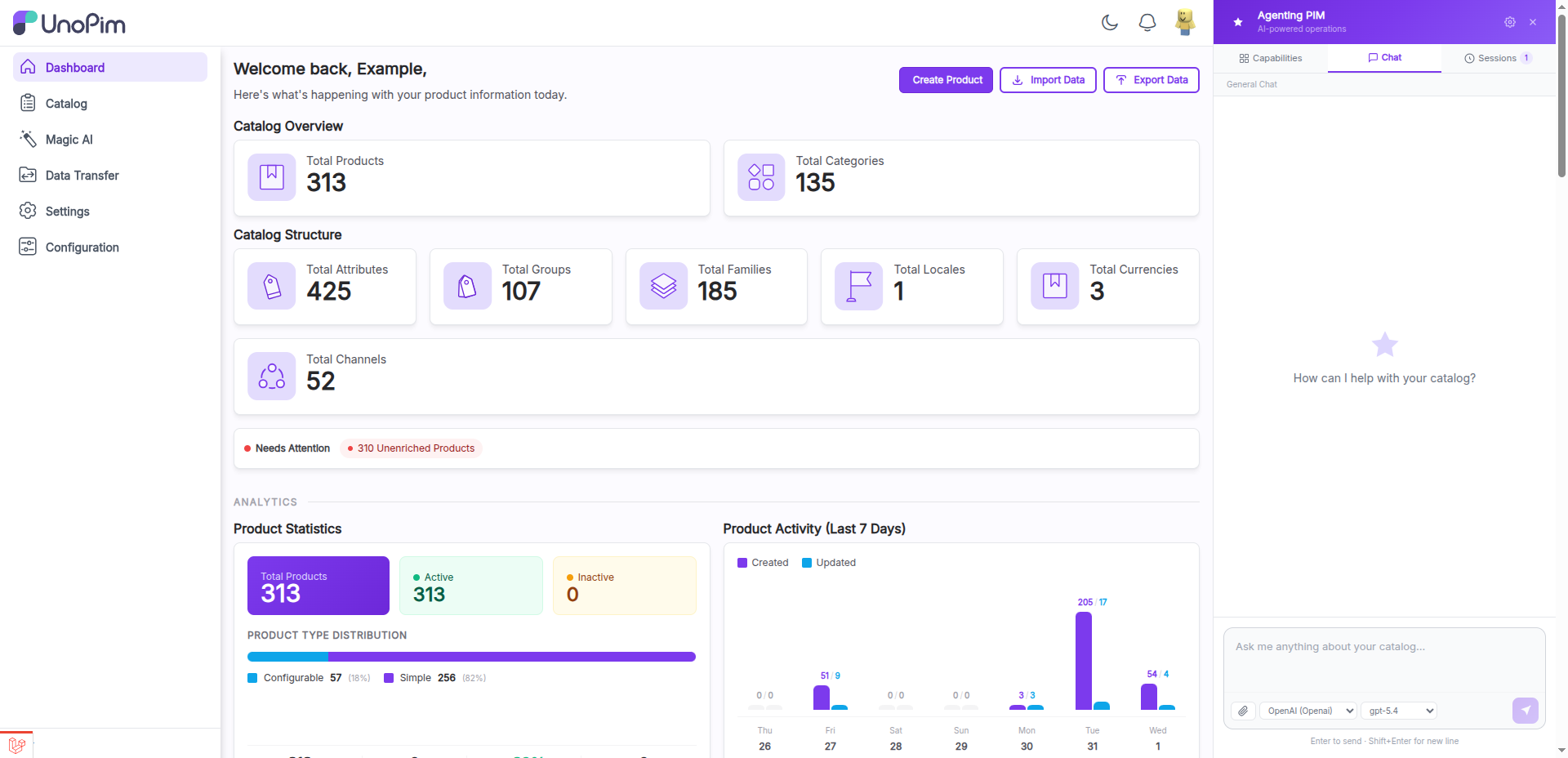
Once opened, the chat panel slides in from the right side of the screen. You can start typing your request immediately.
Capabilities Tab
The Capabilities tab lists all 23 tools the AI Agent can use. Each tool represents a specific PIM operation you can invoke through natural language. The full list is:
| # | Tool | Description |
|---|---|---|
| 1 | Create from Image | Upload photos to auto-create products |
| 2 | Update Products | Update attributes/status by SKU |
| 3 | Search Products | Find products by SKU, name, or status |
| 4 | Find Similar | Find similar products using AI |
| 5 | Generate Content | AI-generated name, description & SEO |
| 6 | Generate Image | Create product images from text |
| 7 | Edit Product Image | Background removal, enhance & retouch |
| 8 | Assign Categories | Assign category paths to products |
| 9 | List Attributes | View family attributes & options |
| 10 | Export Products | Generate CSV/XLSX export |
| 11 | Bulk Import CSV | Upload CSV/XLSX to batch update |
| 12 | Delete Products | Remove products by SKU list |
| 13 | Create Category | Add new categories to the catalog |
| 14 | Category Tree | View full category hierarchy |
| 15 | Create Attribute | Add new product attributes |
| 16 | Manage Options | Add or list attribute options |
| 17 | Attribute Families | List, create, or inspect families |
| 18 | Bulk Edit | Mass update products by rules |
| 19 | Catalog Summary | Stats, counts & recent activity |
| 20 | Channels | View channels, locales & currencies |
| 21 | Users | View admin users & details |
| 22 | Roles | View roles & permissions |
| 23 | Ask Anything | Free-form PIM assistant |
TIP
Each tool respects your ACL permissions. If your admin role does not have access to a particular operation, the corresponding tool will not execute.
Chat Interface Layout
The chat interface consists of the following areas:
- Message Area — Displays the conversation history between you and the AI Agent, including responses, tool outputs, and status updates.
- Input Field — A text input at the bottom where you type your commands or questions.
- Send Button — Submits your message to the AI Agent for processing.
Types of Commands
You can use the AI Agent Chat for a wide range of PIM operations. Below are the main categories of commands you can give.
Product Operations
Create, update, search, and bulk edit products by describing what you need.
Example prompts:
- "Create a simple product with SKU TSHIRT-001 and name Blue T-Shirt"
- "Update the price of product SKU LAPTOP-PRO to 999.99"
- "Search for all products in the Footwear category"
- "Bulk update status to enabled for all products with SKU starting with SHOE"
Category Management
Manage your category tree through natural language commands.
Example prompts:
- "Show me all root categories"
- "List products assigned to the Electronics category"
Data Quality Reports
Scan your catalog for missing or incomplete data and receive structured reports.
Example prompts:
- "Run a data quality scan on all products in the Clothing category"
- "Which products are missing a description?"
- "Show me products with completeness score below 50%"
Product Verification & Quality Scoring
Verify individual products against quality criteria and receive a completeness score.
Example prompts:
- "Check the completeness of product SKU JACKET-100"
- "Verify data quality for all products in the Default family"
Auto-Enrichment
Let the AI Agent generate missing content for your products, such as descriptions and SEO fields.
Example prompts:
- "Generate a short description for product SKU SNEAKER-200"
- "Auto-fill missing meta descriptions for all products in the Accessories category"
- "Enrich the SEO fields for product SKU WATCH-050"
TIP
Auto-enrichment works best when the product already has basic information like a name and category. The AI Agent uses existing data to generate relevant, high-quality content.
Task Planning
For complex operations that involve multiple steps, the AI Agent can create and execute a structured plan.
Example prompts:
- "Plan and execute: update all products in the Summer collection to have a 20% discount and a new promotional description"
- "Create a task plan to review and enrich all products with missing images"
Bulk Transformations
Apply transformations across multiple products simultaneously.
Example prompts:
- "Bulk update all products with status disabled to enabled"
- "Change the category of all products with SKU prefix LEGACY to the Archive category"
Agent Memory System
The AI Agent includes a memory system that allows it to remember facts and preferences you share during your session. It uses two internal tools for this:
- RememberFact — Stores a fact or preference you provide so the agent can reference it later.
- RecallMemory — Retrieves previously stored facts when relevant to your current request.
Example prompts:
- "Remember that our standard product description format starts with the brand name"
- "Recall what I told you about our naming convention"
Content Feedback Loop
When the AI Agent generates content (such as product descriptions), you can provide feedback to refine the output. The agent captures your preferences and adjusts its responses accordingly.
Example prompts:
- "That description is too long, make it shorter and more direct"
- "I prefer a formal tone for product descriptions"
- "Rewrite that but focus more on the material and durability"
Real-Time Streaming Responses
As the AI Agent processes your request, the response streams into the chat in real time using Server-Sent Events (SSE). You do not need to wait for the entire response to finish before reading the output. This provides a smooth, responsive experience even for complex operations that take several seconds to complete.
Sessions Tab
The Sessions tab displays a list of your past chat conversations, making it easy to revisit previous interactions with the AI Agent.
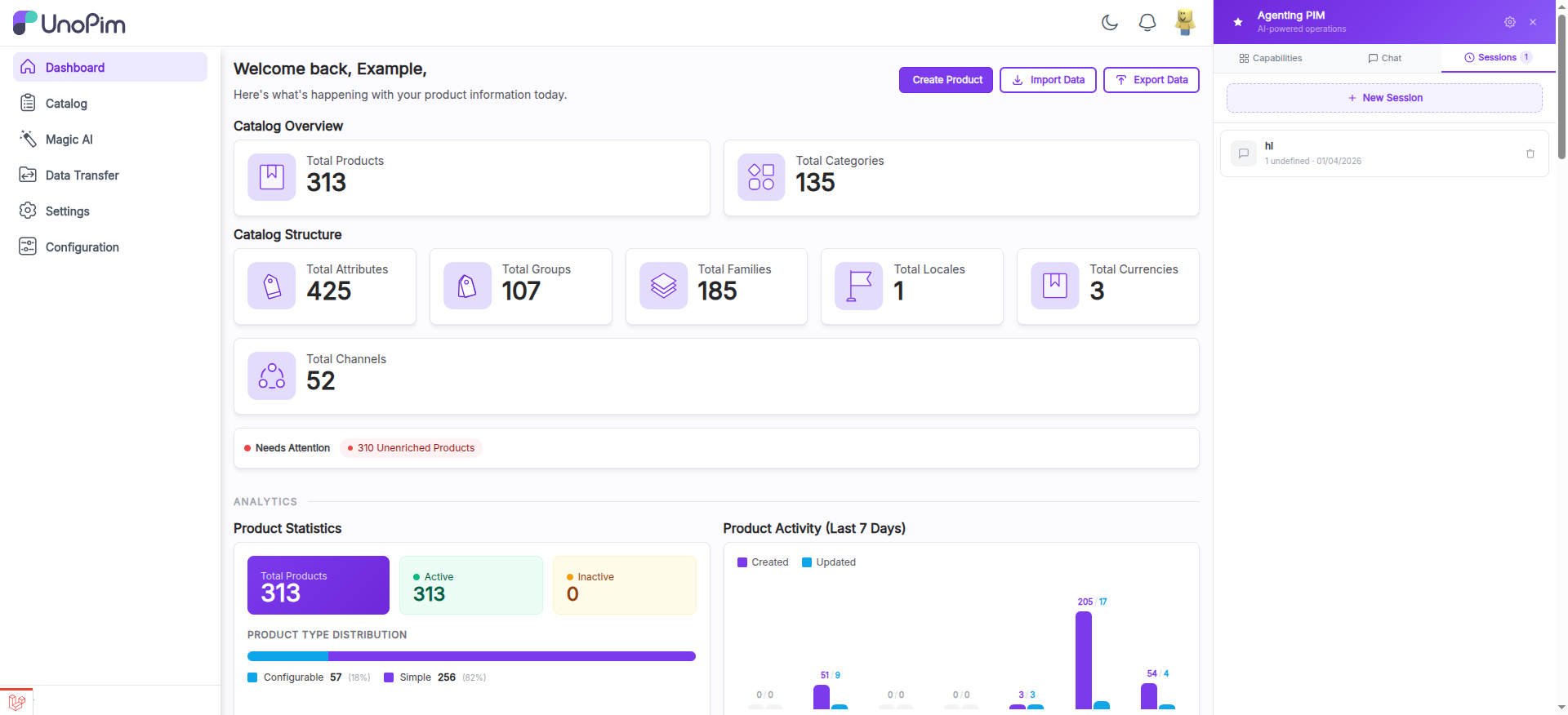
Each session entry shows the following details:
- Session title — A summary or label for the conversation.
- Message count — The number of messages exchanged in that session.
- Date — When the session was created or last active.
Managing Sessions
- + New Session — Click this button to create a fresh conversation without any prior context. This is useful when you want to start a new task without the AI Agent referencing earlier messages.
- Delete session — Click the trash icon next to a session to permanently remove it. This action cannot be undone.
- Resume a session — Click on any session in the list to reopen it. The full conversation history and context are preserved, so the AI Agent picks up exactly where you left off.
Session Persistence
Sessions are database-backed, which means:
- Page refreshes do not clear your conversations. When you reload the page, your previous messages and responses are restored.
- Browser sessions are preserved. You can close your browser and return later to continue where you left off.
- Context is maintained within a session, so the AI Agent remembers what you discussed earlier in the same conversation.
- Sessions persist across logins, so your conversation history is always available when you sign back in.
TIP
Start a new session when switching to a different task. This keeps conversations focused and prevents the AI Agent from mixing context between unrelated operations.